Introduction
This page shows how to install Cloudflare One Client from the Company Portal app. Cloudflare is Qualfon's replacement for Cisco Umbrella and Cisco AnyConnect VPN.
Details
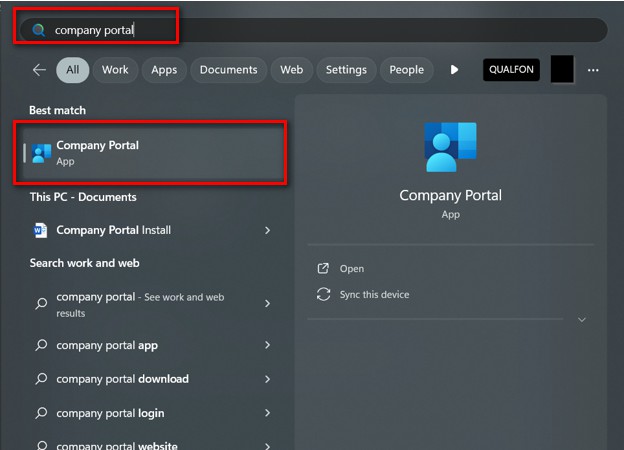
- Click the Start Menu on the bottom taskbar and search for Company Portal.

- Alternatively, in the Search box, type Company Portal and open the App.
- When Company Portal opens, it will automatically sign you in with your Qualfon account or prompt you to sign in.
- To install Cloudflare, click Apps on the left side, or look under Recently Published Apps.

- Click into it, then Install.

- This will uninstall Cisco Umbrella and AnyConnect VPN, then install Cloudflare One Client.
- When completed, it will open Cloudflare and a web browser to sign you in or ask you to sign in.


- Click Connect.

- After it connects, it will automatically use this connection; no need to log in daily.

- Setup is complete. Cloudflare will connect automatically, so you can continue working as usual without connecting to the VPN.


Revision History
Date Created: 11/20/2026 11:13 am EST
Last Modified: 11/20/2026 11:26 am EST